
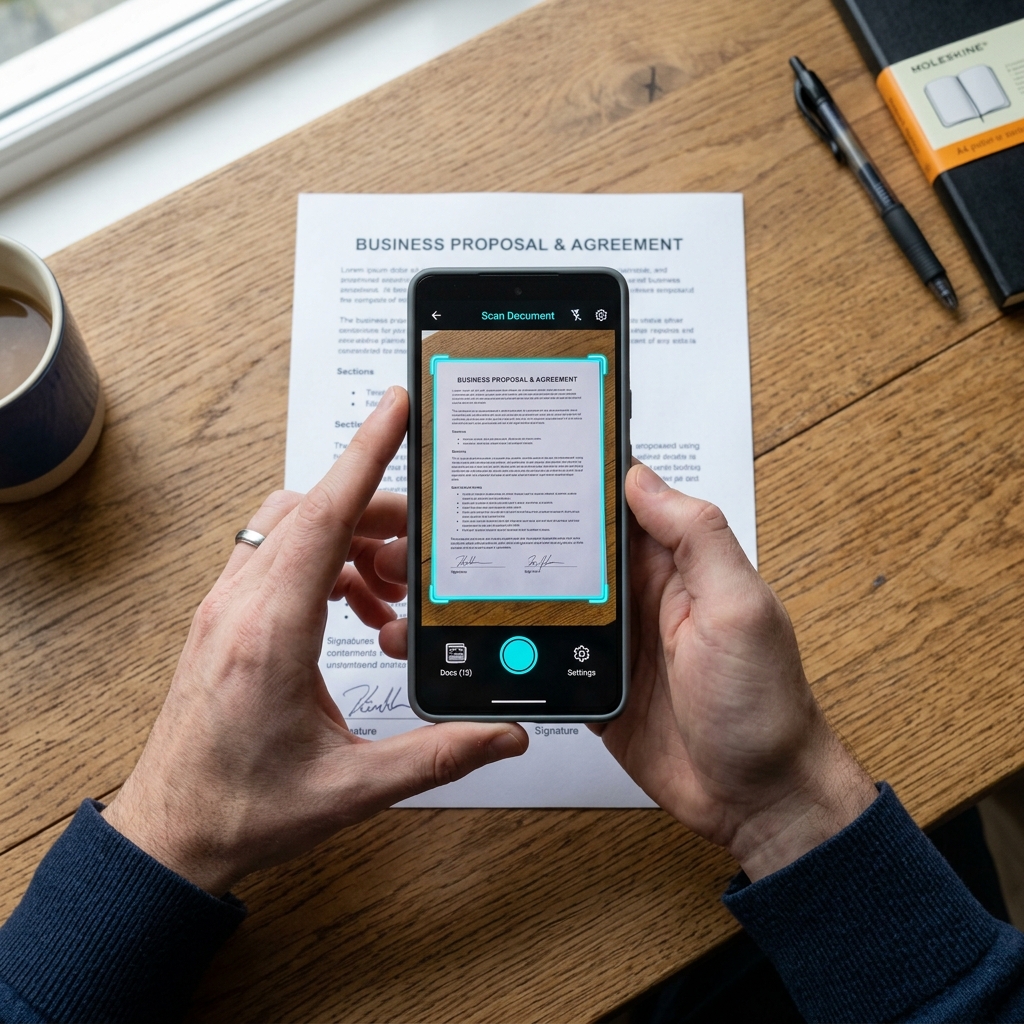
Gone are the days when you needed a bulky flatbed scanner to digitize your paperwork. Today, the high-resolution camera in your pocket is more than capable of producing professional-grade scans—if you know how to use it correctly.
In this guide, we'll walk you through the steps to transform your smartphone into a powerful document scanner using nothing but your web browser and ScanOnline.io.
Step 1: Find the Right Lighting
Lighting is the single most important factor in a high-quality scan. Avoid using your camera's flash, as it often creates harsh reflections on paper. Instead, try to scan near a window with plenty of natural, indirect light. If you must scan indoors at night, ensure the light source is coming from the side to avoid your own shadow falling on the document.
Step 2: Prepare Your Surface
Place your document on a flat surface that contrasts with the paper. For example, place a white document on a dark wood desk. This helps our Smart Crop algorithm accurately detect the edges of the page, even if you aren't holding the phone perfectly level.
Step 3: Capture with Stability
Open ScanOnline.io and hit the scan button. Hold your phone steady and try to keep it parallel to the document. You don't need to be perfect—our perspective correction will fix minor angles—but a steady hand results in much sharper text.
Step 4: Use "Magic Filters"
Once you've captured the image, it's time to make it look professional. Standard photos often look gray or dim. By using the Magic Color or B&W filters on ScanOnline.io, you can instantly whiten the background and darken the text, making it look exactly like it was scanned on a professional office machine.
Master the Art of Scanning
Put these tips into practice right now. No app installation required.
Launch Scanner NowStep 5: Export to PDF
Finally, combine your scans into a single, compact PDF file. ScanOnline.io optimizes the file size so your documents are easy to email or upload to cloud storage without sacrificing legibility.
Pro Tip: Add to Home Screen
If you find yourself scanning frequently, use the "Add to Home Screen" feature in your browser. This installs the ScanOnline.io PWA, giving you one-tap access to your scanner whenever you need it.